

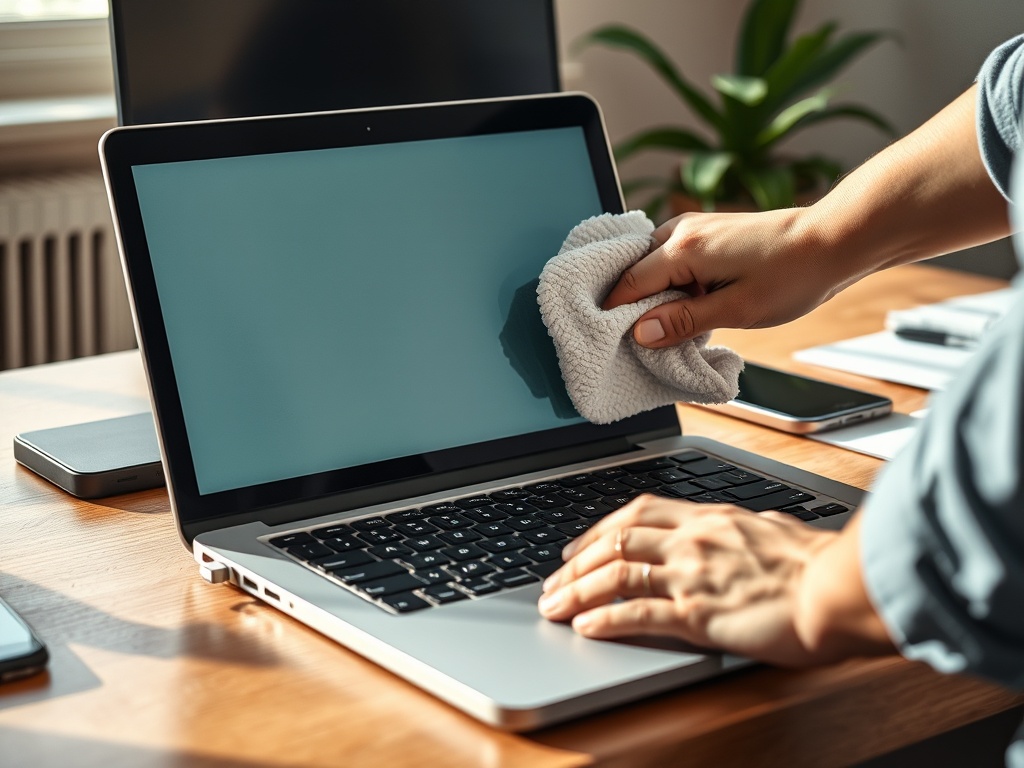
Safe device maintenance means removing dust, debris, and grime without introducing moisture, scratches, static damage, or accidental input. Power devices down, unplug accessories, use soft lint-free materials, and follow the manufacturer’s cleaning guidance before trying stronger products.
TL;DR: Turn devices off, unplug them, use a dry or lightly damp lint-free cloth, avoid abrasive materials, keep liquids away from openings, and clean ports, vents, keyboards, and screens gently.
Start with safety, not cleaning products
Most hardware cleaning mistakes happen because people begin with a spray bottle, compressed air, or alcohol wipe before reading the device’s care instructions. Laptops, phones, monitors, keyboards, mice, tablets, and routers use different materials. A cleaner that is fine on one surface may damage coatings on another.
Apple’s cleaning guidance recommends a soft, lint-free cloth and warns against abrasive cloths or paper towels for its products. Microsoft gives similar care guidance for Surface devices, including gentle cleaning of touchscreens, covers, and keyboards. These official guides are worth checking because they account for coatings, fabrics, ports, and materials that generic advice often ignores. Review Apple’s page on cleaning Apple products and Microsoft’s page on cleaning and caring for Surface devices before using any chemical cleaner.
The first rule is simple: do not clean a powered device unless the manufacturer specifically says that is safe. Shut it down, unplug it, disconnect accessories, and let it cool. If a device has a removable battery, follow the manufacturer’s instructions before removing it. If you are not sure, do not force anything open.
Prepare a low-risk cleaning kit
A beginner maintenance kit does not need much. Keep it boring and safe:
- Microfiber cloths.
- A soft brush.
- Cotton swabs used carefully.
- Distilled water for lightly dampening a cloth.
- Manufacturer-approved screen wipes, if needed.
- A small hand blower or careful compressed air for external dust, used according to instructions.
- Cable ties or straps for cable management.
Avoid household glass cleaner, bleach, abrasive pads, soaking wipes, and spraying liquid directly onto devices. Liquid should go on the cloth, not the hardware. Ports, vents, speaker grilles, seams, keyboards, and charging areas need extra caution because moisture can travel inside.
Clean screens without damaging coatings
Screens collect fingerprints and dust quickly, but they are also easy to scratch. Turn the device off so smudges are easier to see and accidental touches do not trigger input. Wipe gently with a clean microfiber cloth. If dry wiping does not work, lightly dampen the cloth with water or use a product approved by the manufacturer.
Do not press hard. Pressure can damage panels, hinges, or coatings. Do not use paper towels. They can feel soft but still scratch delicate surfaces. If you see a stubborn spot, hold the damp cloth on the area briefly, then wipe lightly rather than scraping.
This same discipline helps when you organize device records. Keep cleaning instructions, warranty notes, and purchase receipts in the folder structure described in a beginner digital filing system so you are not guessing later.
Keyboards, mice, and touchpads need patience
Keyboards trap crumbs, skin oils, dust, and pet hair. For external keyboards, unplug them first. For laptops, power down the device. Turn the keyboard gently to loosen debris. Use a soft brush to move particles away. If using compressed air, use short bursts and keep the can upright as instructed. Aggressive air blasts can push debris deeper or introduce propellant.
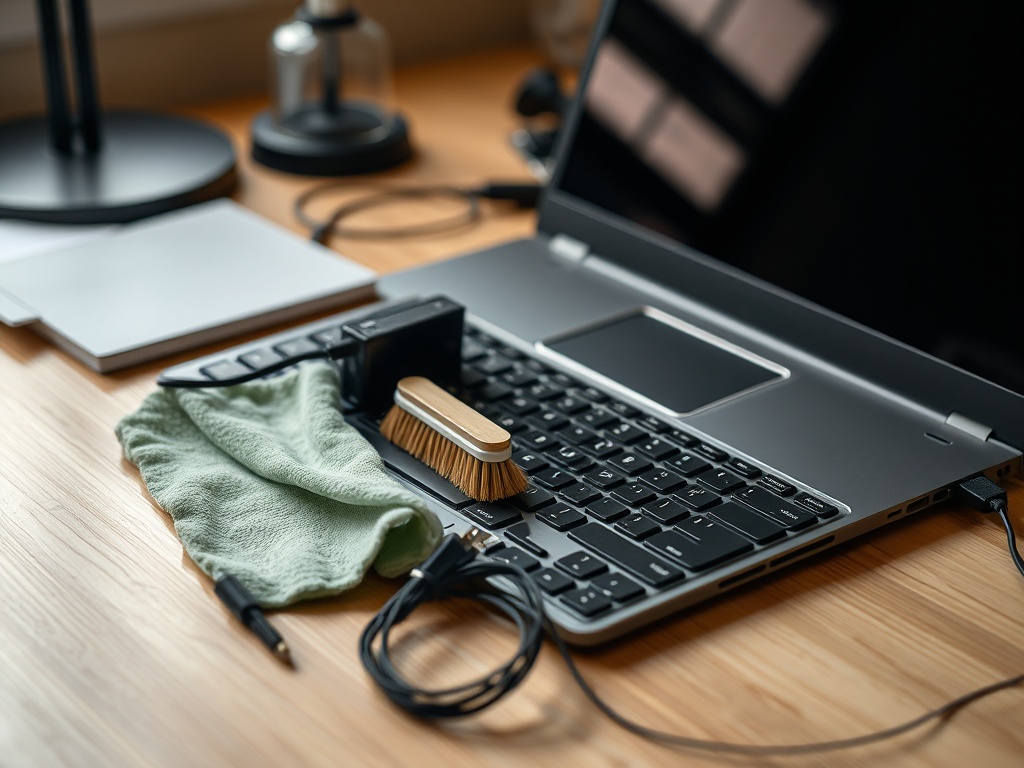
For keycaps and touchpads, use a slightly damp microfiber cloth. Cotton swabs can help around edges, but do not force them under keys. If keys stick after a spill, stop using the device and follow manufacturer or repair guidance. Sugary liquid can cause electrical and mechanical damage, and wiping the surface may not solve the problem.
Vents, fans, and ports are maintenance zones
Dust buildup can block airflow and make devices run hotter. You can safely clean external vents with a soft brush or careful air, but avoid spinning internal fans at high speed with compressed air. If a desktop case needs internal dust removal, shut it down, unplug it, ground yourself, and avoid touching components unnecessarily. If you are not comfortable opening it, get help.
Ports need a different approach. Never dig metal tools into USB, HDMI, charging, or headphone ports. Remove visible lint gently with nonconductive tools only if you know what you are doing. For phones and compact laptops, a damaged charging port can be expensive, so professional cleaning may be safer.
Maintenance is more than wiping surfaces
Hardware care also includes software updates, backups, cable strain relief, battery habits, and storage conditions. CISA’s Secure Our World campaign emphasizes updating software as one of the basic protective behaviors. Updates are not physical cleaning, but they help maintain device security and reliability.
Build a monthly maintenance routine:
- Clean screen, keyboard, mouse, and exterior surfaces.
- Check vents for dust buildup.
- Review cables for fraying, tight bends, or loose plugs.
- Restart devices that have been running for weeks.
- Install pending updates after backing up important files.
- Confirm that backups are still running.
- Remove unused accessories, chargers, and adapters from the workspace.
This routine also supports automation habits and settings that actually help because repeatable maintenance tasks are good candidates for reminders, checklists, or calendar nudges.
What not to do when a device is dirty
Do not spray cleaner into a keyboard, monitor edge, fan opening, or charging port. Do not soak a cloth. Do not use a vacuum nozzle directly against delicate components. Do not use strong solvents unless the manufacturer specifically approves them. Do not scrape residue with a knife, paper clip, or screwdriver.
Do not ignore heat. If a laptop becomes unusually hot, fans run constantly, or performance drops during basic tasks, cleaning may help, but heat can also point to battery, fan, thermal, software, or malware problems. If cleaning external vents and updating software do not help, escalate before the device fails.
Quick checklist before you restart
Before turning the device back on, check that surfaces are dry, ports are clear, cables are seated properly, vents are not blocked, and no cloth fibers remain around keys or seams. Put the device on a stable surface with airflow. Keep drinks away from the work area.
For shared devices, create a cleaning note that says what products are allowed and what should be avoided. This prevents someone from using a harsh cleaner later.
Make safe maintenance routine
Good device care is quiet and consistent. Clean gently, follow official guidance, keep records, and treat heat, liquid, and ports with caution. Your next step is to create a small maintenance kit and schedule a monthly check before dust and cable problems become disruptive.